Check controller bindings
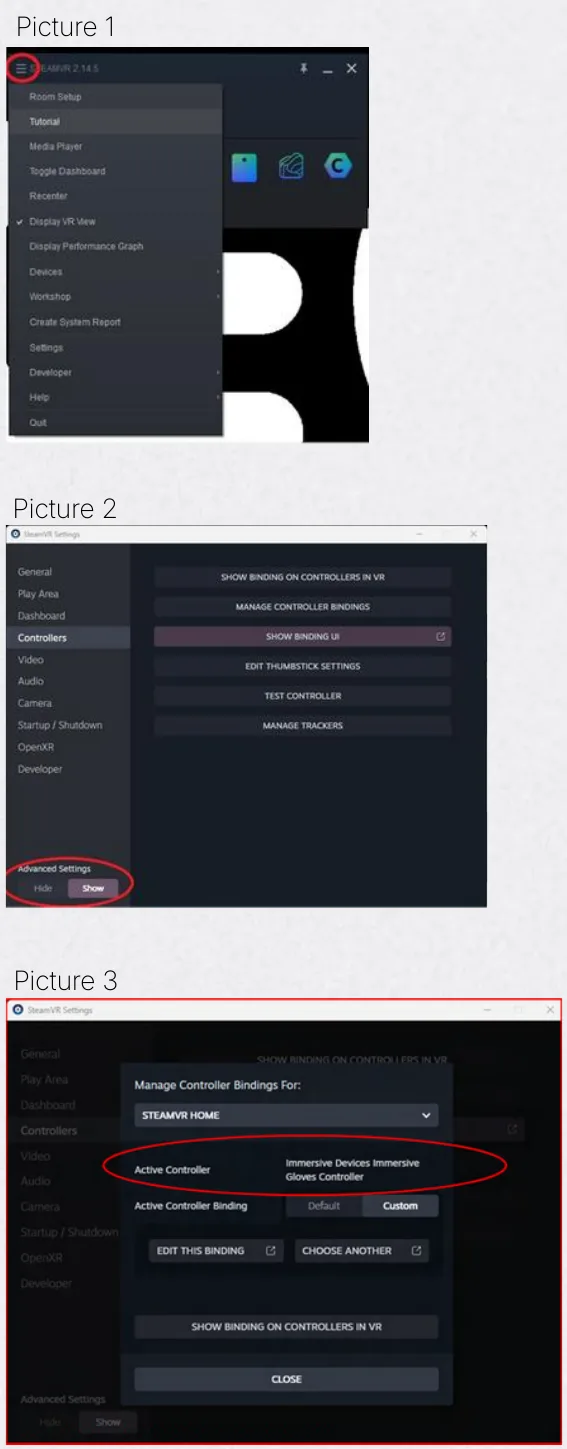
Check that SteamVR recognises the gloves as Immersive Devices Immersive Glove Controller.
1. Open SteamVR Settings
In the small SteamVR window, click the three lines to open the menu, then select Settings (picture 1).
2. Show advanced settings
In Settings, make sure Advanced Settings is set to Show — bottom left (picture 2).
3. Manage controller bindings
Select Controllers in the left menu, then click Manage Controller Bindings (picture 2).
4. Check the active controller
The active controller should be Immersive Devices Immersive Glove Controller (picture 3).
Don't see it?
The driver isn't installed correctly. Go back and install the driver again.